How to Activate Windows 11 with a Product Key (2026)
Activate Windows 11 from Settings in a few minutes. Steps, the command line method, digital licenses and fixes for the most common activation error codes.
On this page
- Before You Start: 3 Checks
- Method 1: Activate Windows 11 in Settings (Recommended)
- Method 2: Activate Windows 11 from the Command Line (slmgr)
- How to Remove the "Activate Windows" Watermark
- How to Upgrade Windows 11 Home to Pro
- Activating After a Reinstall or Hardware Change
- Common Windows 11 Activation Errors and Fixes
- A Word on Activation Tools
- Choosing the Right License
- Frequently asked questions
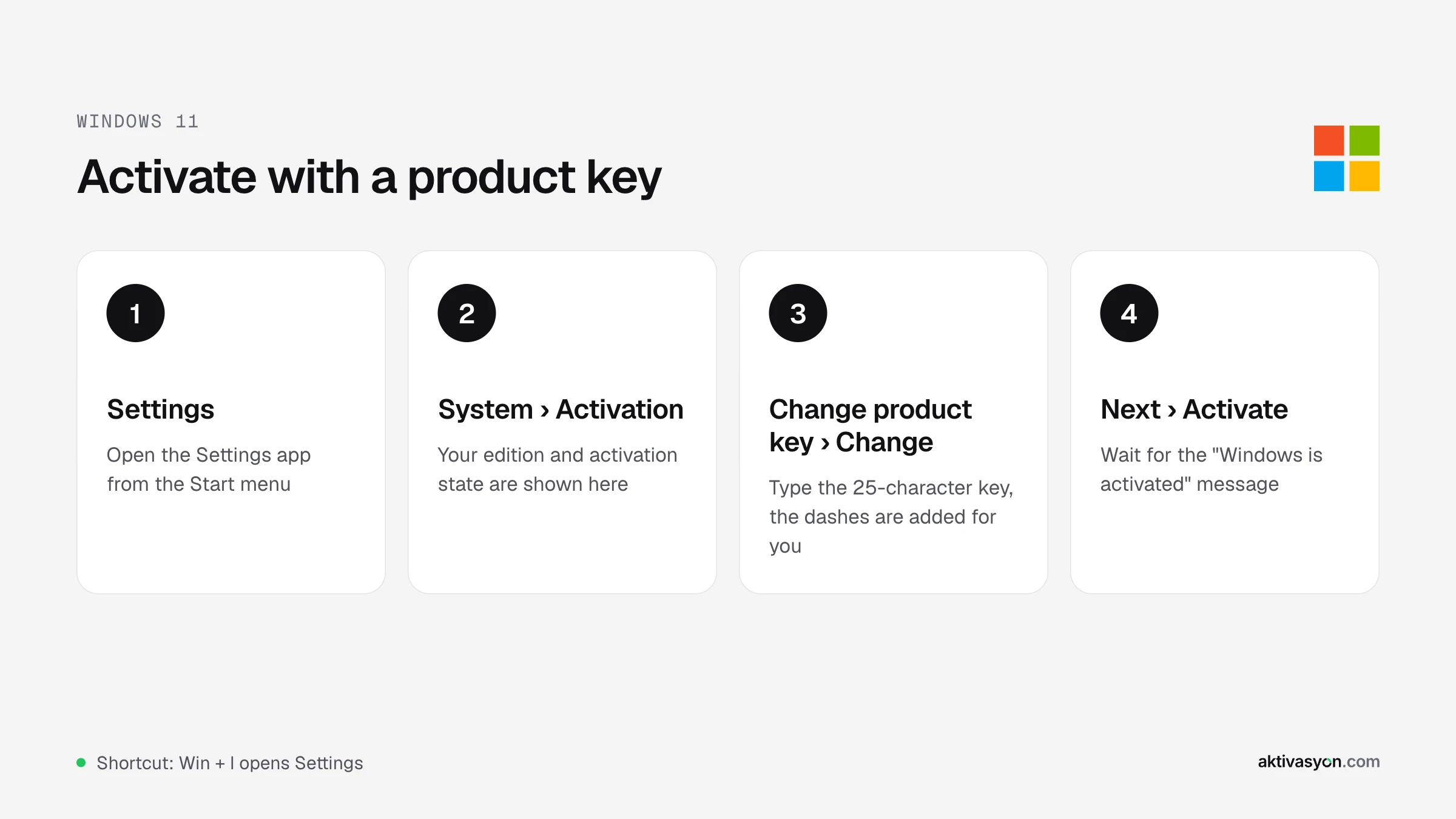
Quick answer: To activate Windows 11, open Settings > System > Activation, select Change next to Change product key, enter your 25-character product key and select Activate. With an internet connection it usually takes a few seconds. The key has to match the edition installed on your PC (Home or Pro).
This guide covers how to check your activation status, two ways to enter a product key, how to upgrade from Home to Pro, what to do after a reinstall or hardware change, and what the most common activation error codes mean.
Before You Start: 3 Checks
1. Check your activation status. Open Settings > System > Activation to see your Windows edition and activation state. Press Win + I to open Settings quickly. You will see one of three states:
- Active: Windows is already activated and there is nothing else to do.
- Windows is activated with a digital license linked to your Microsoft account: your license is tied to your hardware and to your Microsoft account, which helps after a reinstall or a hardware change.
- Not active: you need to enter a product key or run the troubleshooter.
2. Match your key to your edition. A Windows 11 Home key activates a Home installation and a Windows 11 Pro key activates a Pro installation. If the edition and the license don't match, activation fails. The one exception is entering a Pro key on a Home installation, which upgrades the PC to Pro (covered below).
3. Know your license type. Retail and OEM keys are entered the same way but behave differently after a reinstall. If you use a Retail key, enter it after Windows setup and your drivers are finished. The differences are summarized on the operating systems page.
Method 1: Activate Windows 11 in Settings (Recommended)
This method is the same on Windows 11 Home and Pro. You only need to be signed in with an administrator account.
- Open Start > Settings, or press Win + I.
- Select System on the left, then Activation on the right.
- Next to Change product key, select Change. If User Account Control asks for permission, select Yes.
- Type the 25-character product key. You don't need to type the dashes, Windows adds them for you.
- Select Next, then Activate.
- When you see "Windows is activated", you are done. The "Activate Windows" watermark in the bottom right corner disappears, at the latest after the next restart.
Tip: If you paste the key, make sure there are no spaces at the start or end. A common mistake is mixing up the number 0 with the letter O, or 8 with B.
Method 2: Activate Windows 11 from the Command Line (slmgr)
If the Settings page won't open or you need to activate several PCs quickly, you can use slmgr, the license tool built into Windows. There is nothing to download.
-
Right-click the Start button and open Terminal (Admin).
-
Install the product key with this command (replace the Xs with your key):
slmgr /ipk XXXXX-XXXXX-XXXXX-XXXXX-XXXXX -
Start activation:
slmgr /ato -
After a few seconds, a window should say "Product activated successfully".
Two more commands help you check your license:
| Command | What it shows |
|---|---|
slmgr /xpr | Whether Windows is permanently activated |
slmgr /dli | The license channel (such as Retail or OEM) and the last 5 characters of the key |
How to Remove the "Activate Windows" Watermark
The watermark is Windows telling you it isn't activated, so the only lasting way to remove it is to activate Windows with a valid key using one of the two methods above. Registry edits and "watermark remover" tools only hide the message: personalization settings stay locked, the watermark can come back after an update, and many of these tools ship with malware.
How to Upgrade Windows 11 Home to Pro
If your PC runs an activated copy of Windows 11 Home, you can move to Pro without reinstalling. Your files and apps stay in place, but backing up important data first is always a good habit.
- Open Settings > System > Activation and confirm that Home is active.
- Select Change product key > Change.
- Enter your Windows 11 Pro product key or your Home to Pro upgrade key.
- Select Next. Windows installs the Pro features and restarts your PC.
To upgrade through the Microsoft Store instead, expand Upgrade your edition of Windows on the same page and select Open Store. In short, Pro adds business tools such as BitLocker encryption, incoming Remote Desktop, Hyper-V and Group Policy. For home use, Home is usually enough.
Activating After a Reinstall or Hardware Change
If you reinstalled Windows on the same PC, you usually don't need to do anything. If Windows 11 was activated on that PC with a digital license before, it activates itself once you connect to the internet. If setup asks for a product key, you can select I don't have a product key and continue. What matters is choosing the same edition (Home or Pro) that was installed before.
If you replaced a major component such as the motherboard, Windows may no longer match your license to the hardware. In that case:
- Open Settings > System > Activation and select Troubleshoot.
- Select I changed hardware on this device recently.
- Sign in with your Microsoft account and choose this PC from the list.
This only works if your license was linked to your Microsoft account before the hardware change. If the Activation page doesn't mention a digital license linked to your Microsoft account, sign in with your Microsoft account today to create that link.
Phone activation is gone. Microsoft ended phone activation for Windows on December 3, 2025. To activate a PC that can't go online, use the online activation portal that Microsoft points to (aka.ms/aoh) from a second device with internet access, such as your phone or another computer.
Common Windows 11 Activation Errors and Fixes
| Error code | What it means | What to do |
|---|---|---|
| 0xC004C003 | The key was used, or tried, on more than one device and has been blocked | Contact the seller you bought the key from. If Windows came with the PC, contact the manufacturer |
| 0xC004C008 | The key has been used on more devices than the license allows | Each PC needs its own key. Contact your seller |
| 0xC004F034 | The key is invalid or belongs to a different edition of Windows | Enter a key that matches your installed edition (Home or Pro) |
| 0xC004F050, 0xC004C060 | The key can't activate this copy of Windows, or the activation servers were busy | Wait a little and select Activate again. If it keeps failing, check the key |
| 0xC004F074, 0x8007007B | Usually an Enterprise (KMS) key used on Home or Pro, or a work PC that isn't on the company network | Enter a key for your edition. For a work PC, contact your IT department |
| 0x803F7001 | No valid Windows 11 license was found for this device | Enter your product key with Change |
| 0xC004F213 | No product key was found on the device (often after a hardware change) | Enter the key you used before, or follow the troubleshooter steps above |
These meanings are based on Microsoft's Windows activation errors page. If your code isn't listed, Settings > System > Activation > Troubleshoot is always the first thing to try.
A Word on Activation Tools
Searching for ways to activate Windows 11 for free turns up KMS scripts and "activators" that try to bypass Microsoft's licensing. They often carry malware, ask you to switch off your antivirus, and a Windows update can undo the activation. Both methods in this guide use tools that are already part of Windows and need no extra software. All you need is a valid product key that matches your edition.
Choosing the Right License
If you don't have a product key yet, the right choice depends on how you use your PC:
- Home, school and gaming PCs: Windows 11 Home
- Work, development, remote access, BitLocker: Windows 11 Pro
- Your PC already runs activated Home and you need Pro features: Home to Pro Upgrade
You can compare every edition and license type on the Windows 11 licenses page.
Frequently asked questions
Can I use Windows 11 without activating it?
Yes, Windows keeps working with some limits. Personalization settings such as wallpaper and colors stay locked, an "Activate Windows" watermark appears in the bottom right corner, and you will see activation reminders from time to time. For long-term use, a licensed installation is recommended.
Will my Windows 10 product key activate Windows 11?
Usually, yes. A Windows 10 Home key activates Windows 11 Home and a Windows 10 Pro key activates Windows 11 Pro. If your PC runs a licensed copy of Windows 10, you can upgrade to Windows 11 for free through Windows Update and keep your activation.
Do I need to enter my key again after a clean install?
If you reinstall the same edition on the same PC, usually not. Windows activates itself with your digital license once it goes online. Retail and OEM keys behave differently on reinstall, so if you plan to reuse a Retail key, check the terms of the store you bought it from.
How long does Windows 11 activation take?
With an internet connection, anywhere from a few seconds to about a minute. If it stays on "Activating" for a long time, check your connection and try again.
How many PCs can I use one product key on?
Windows 11 Home and Pro keys are for a single PC. Using the same key on a second PC leads to error 0xC004C003 or 0xC004C008.
What happens if I enter a Windows 11 Pro key on a Home installation?
Windows treats it as an edition upgrade and moves your PC to Pro. Your files are kept, and the PC restarts at the end.